Why Your Video Player is Sabotaging Your Production (And What to Choose in 2026)
I. The Video Playback Paradox: Fidelity vs. Complacency
In the world of broadcasting, a good player is one that manages to play a corrupted or poorly encoded file without stopping. In the world of production, the exact opposite is true: you need a “ruthless” player that stops at the slightest error.
- The “Plug & Play” Trap: Players like VLC or QuickTime integrate resilience mechanisms. If a frame is too heavy to decode or contains an error, they will sometimes skip it or reduce rendering precision to maintain fluidity, often without warning you. For validating AI-generated video, this is a critical failure: you could validate a file containing actual micro-stutters, thinking it is merely playback lag.
- The Illusion of Fluidity: Smoothing algorithms (deinterlacing or post-processing) enabled by default hide temporal consistency flaws. Certain treatments or system/TV motion smoothing can mask artifacts, which are actually major technical defects that will resurface during color grading.
- Gamma Shift and Color Shift: This is an editor’s nightmare. QuickTime, for example, often applies gamma compensation (linked to ColorSync on Mac) that brightens blacks. Result: you spend hours correcting an image that was already perfect, simply because your player was “lying” about luminance levels.
II. MPV: The Gold Standard of Surgical Control (Cross-platform)
If VLC is a “survival” player, MPV is a measuring instrument. Adopted by post-production engineers and AI researchers, this open-source player distinguishes itself through a total absence of graphical fluff in favor of absolute technical rigor.
- Zero-Filter Architecture: Unlike standard players, MPV applies no smoothing, no sharpening, and no dynamic contrast management by default. You get a predictable and configurable output: every pixel of the file is sent as-is to your graphics card’s rendering engine. For verifying temporal consistency in AI, it is the ultimate tool for detecting noise or genuine frame jumps.
- The Invisible Interface: MPV does not clutter itself with complex menus. Everything happens via keyboard shortcuts and a configuration file (mpv.conf).
- IINA (Mac) vs. Pure MPV (PC):
- On Windows: Using pure MPV (often via builds like shinchiro) allows for direct integration with NVIDIA drivers.
- On macOS: The IINA player uses the MPV rendering engine while offering a native, fluid Swift interface. It is the best compromise for benefiting from MPV’s power with the comfort of Apple trackpad gestures and Picture-in-Picture support.
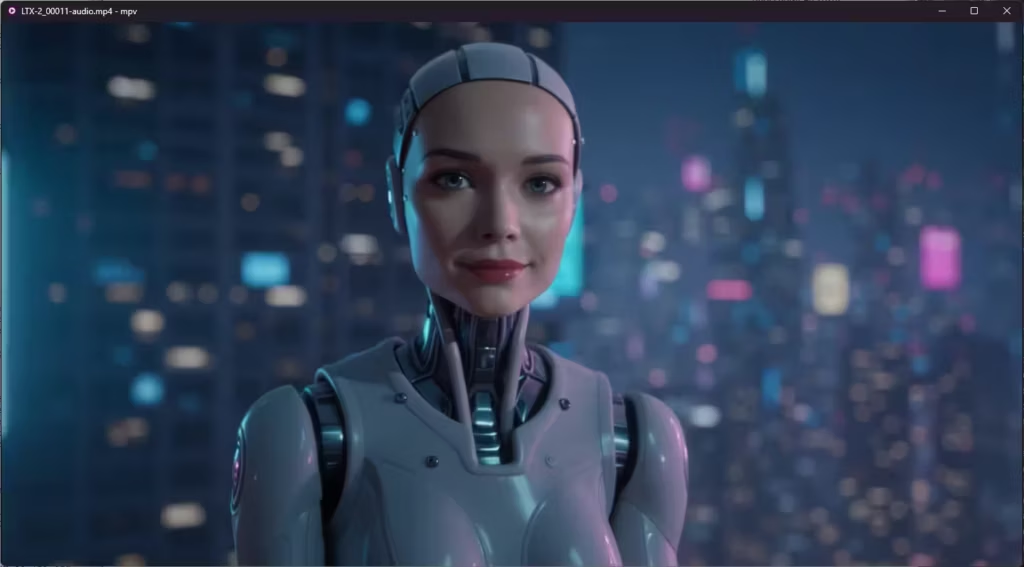
III. Hardware Power: Optimizing NVDEC and Apple Silicon Decoding
In 2026, the smooth playback of 8K streams or AI-generated videos no longer relies on raw processor (CPU) power, but on specialized chips integrated into your hardware. If your player is not configured to utilize them, you will experience micro-stutters even on the world’s best setups.
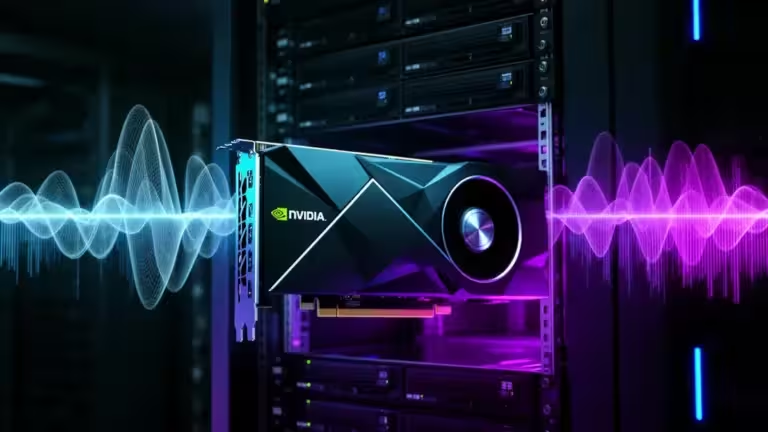
- RTX 5000 Series (PC): Latest generation NVIDIA cards feature the 9th generation NVDEC engine. The major breakthrough is full hardware support for 10-bit 4:2:2, a format previously reserved for high-end processors. To leverage this in MPV, it is crucial to enable hwdec=nvdec in your configuration file. This allows for reading eight simultaneous 4K streams or an 8K AV1 stream without your fans ramping up, guaranteeing the “Instant Seek” capability indispensable for comparing two versions of the same scene.
- Apple Decoding Engines (Mac M4/M5): Apple Silicon architecture features dedicated blocks called Media Engines. M4 Pro and Max chips now possess two ProRes decoding engines, capable of playing up to 24 simultaneous 8K ProRes streams. On Mac, a player like IINA automatically uses Apple’s VideoToolbox framework for optimal color fidelity on Liquid Retina XDR displays.
- AV1 Support: Whether you are on an RTX 5000 series or the latest Mac chips, hardware decoding of AV1 is now the standard. This codec, widely used for generative AI outputs due to its excellent quality-to-weight ratio, benefits heavily from hardware acceleration—particularly for 4K, 8K, or 10-bit streams. Without it, some configurations may suffer from CPU spikes, micro-stutters, or audio/video sync variations during playback.
IV. The Complementary Toolkit for QC (Quality Control)
Beyond simple playback, production demands a granular analysis of metadata and structural file integrity. Here are the essential tools to validate your renders before any delivery or integration.
- MediaInfo: Diagnosis Before the First Click: Before even opening a file, use MediaInfo. This free utility reveals everything that standard file explorers hide: real bitrate, exact color space (Rec.709 vs. P3), and most importantly, VFR (Variable Frame Rate) detection. In AI video generation, VFR is a poison that destroys audio synchronization during editing; MediaInfo allows you to identify this issue instantly.
- Telestream Switch: Certified Inspection: For broadcast or advertising workflows, Telestream Switch is the reference. It allows you to inspect metadata flags, verify field order (interlaced vs. progressive), and control GOP (Group of Pictures) structure. It is one of the few players capable of properly displaying embedded subtitles and multiple audio tracks (5.1, stems) with precision meters.
- Assimilate SCRATCH Player: For RAW and AI Workflows: If your workflow involves image sequences (DPX, OpenEXR) or uncompressed camera formats, SCRATCH offers unparalleled playback speed. Its native frame-by-frame metadata management makes it the tool of choice for VFX supervisors and AI artists who need to track artifacts on extremely heavy files that standard players refuse to open.
V. The Danger of Audio Compensations in Monitoring
In a video production workflow, audio is not just an accompaniment: it is a critical temporal reference. The most frequent error is trying to “adjust” the monitoring within the video player itself to compensate for hardware flaws or perceived lag.
- The Lying Ear: If you sense a delay between image and sound, the temptation is great to use sync shortcuts (often the J and K keys or delay settings) to recreate coherence. This is a major technical error. By doing so, you mask a potential encoding problem or a poor timeline setting. In production, if the audio is not aligned, the fix must be applied at the source (the file), never in the player.
- Absolute Neutrality: Many consumer players apply “normalization” or dynamic range compression (Loudness Equalization) to make dialogue more audible. For an editor, this totally distorts the perception of the mix. A player like MPV or IINA must be configured in “Passthrough” mode or with a 0.0 dB gain to ensure you hear the actual dynamics of the file, without parasitic software processing.
- The Bluetooth Trap: In production, audio monitoring via Bluetooth should be avoided for validation. The variable latency induced by wireless codecs makes any lip-sync verification completely random. Always prioritize a wired connection or a dedicated audio interface (ASIO on Windows or CoreAudio on Mac) to guarantee low and stable latency between the signal processor and your ears.
VI. Verdict: Which Tool for Which Environment?
To stop suffering from the haphazard interpretations of consumer software, your choice should be dictated by your operating system and your workflow stage.
- On Windows: The MPV + Expert Configuration combo. To take full advantage of an RTX 5000 series architecture, MPV remains unbeatable. It requires a slight initial configuration effort, but it is the only one that guarantees the power of your NVDEC cores is used for surgical precision rather than aesthetic smoothing.
- On macOS: IINA for versatility, Screen for rigor. IINA is the default player for any Apple Silicon user seeking MPV’s performance with the elegance of an Apple interface. For even more advanced color validation, tools like Screen (Video Village) ensure that macOS color management does not interfere with your metadata.
- For Final Validation: Telestream Switch. As soon as a file must leave your workstation for professional broadcast or client delivery, a pass through Switch is necessary to validate that the container and content (codecs/audio) comply with industrial standards.
# Example mpv.conf file. Optimized for Nvidia Blackwell
# --- INTERFACE AND BEHAVIOR ---
input-ipc-server=\.pipempv-socket
osc=yes
keep-open=yes
autofit=70%

# --- GPU PERFORMANCE (RTX 5000) ---
vo=gpu-next
gpu-api=vulkan
gpu-context=winvk
hwdec=nvdec

# --- FIDELITY / QC ---
profile=high-quality
video-sync=display-resample
interpolation=no
deband=no
scale=nearest
cscale=nearest
dither-depth=auto

# --- NEUTRAL AUDIO ---
audio-pitch-correction=no
volume-max=100
audio-channels=auto
Conclusion: Truth Over Beauty
In production, the best video player is not the one that makes your images look beautiful, but the one that reveals their weaknesses. By combining the modern computing power of NVIDIA GPUs or Apple chips with predictable and configurable rendering engines, you regain total control over your creative chain, from dailies and AI generation to the final export.
Your comments enrich our articles, so don’t hesitate to share your thoughts! Sharing on social media helps us a lot. Thank you for your support!