Windows 11 Backup and WSL Environments: Reliable Solutions Guide (2026)
The evolution of Windows 11 has transformed the operating system into a hybrid ecosystem where the Windows kernel and Linux instances coexist via WSL 2. All of our local AI guides, such as installing vLLM with Docker Compose or Hugging Face Transformers on Windows 11, rely on this architecture. This makes backing up WSL 2 critical for the continuity of your projects.
However, native protection tools remain primarily designed for classic NTFS file structures. While integrated tools are sufficient for basic personal file protection, development environments and AI datasets require a more technical approach.
Why Native Windows 11 Tools Struggle with WSL 2
Relying on default backup features to protect Linux instances presents structural limitations that every power user and developer must understand.
The Architecture of Virtual Disks (.vhdx)
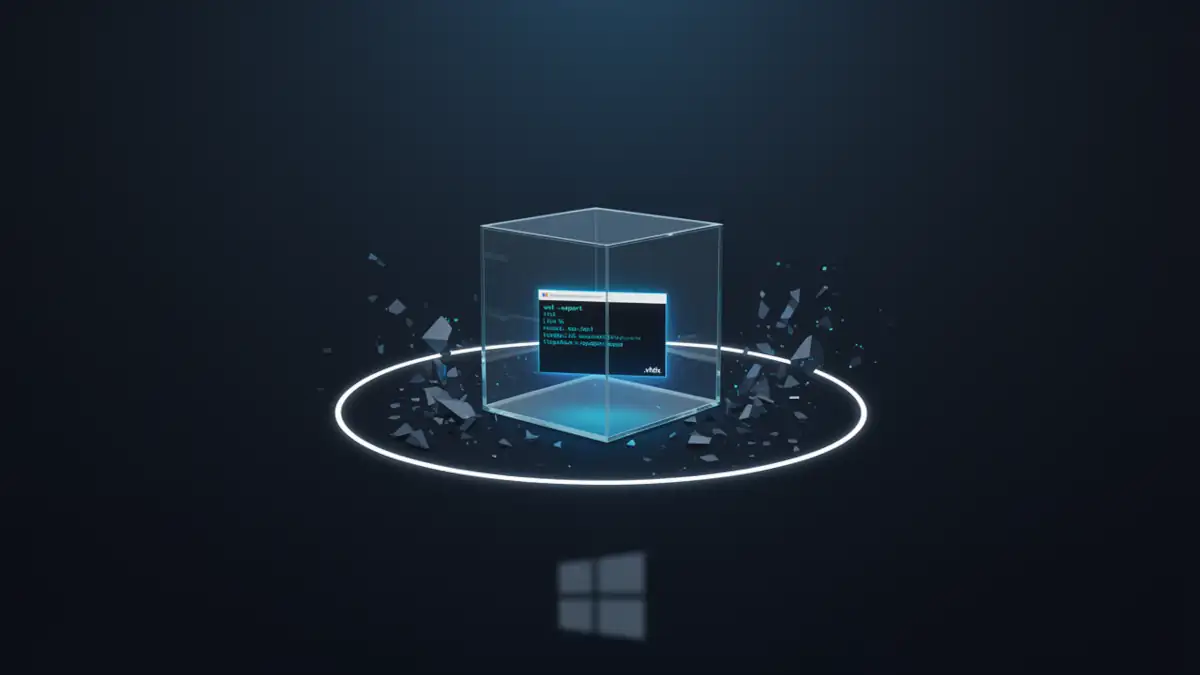
WSL 2 encapsulates each distribution within a virtual hard disk in .vhdx format. If you have installed Open WebUI via Docker or Unsloth on Docker, your models and environments appear to Windows as a single, opaque binary file. This encapsulation prevents granular file-level backup from the host side.
The Role and Limits of VSS (Volume Shadow Copy)
The Windows VSS service is highly effective at producing a consistent snapshot at the NTFS file system level. However, potential inconsistency does not stem from VSS itself, but from the ext4 file system internal to the .vhdx. If WSL is active during the snapshot, Linux-side memory writes may not be synchronized to the virtual disk. The NTFS snapshot will be “clean,” but the internal Linux file system might be marked as “dirty” upon reboot, requiring a fsck or leading to application data loss.
The Legacy “Backup and Restore (Windows 7)” Tool
While maintained for compatibility, this utility is limited in modern hybrid environments. It lacks fine-tuned management for hypervisor-type open files and the flexibility required for fast incremental backups of large volumes, such as those generated when dealing with AI tokens and large context windows.
Backup Strategies: WSL Export vs. System Image
A developer-focused backup strategy on Windows rests on two complementary pillars.
1. Atomic Backup: WSL .tar Export
The only method ensuring absolute consistency of the Linux file system is native exportation. It allows you to freeze the instance and preserve Unix permissions, which are essential if you use VS Code to manage your Linux projects.
# Exporting a distribution
wsl --export <DistroName> D:Backupswsl-distribution.tar
2. Global Backup: The System Image
A system image (Bare Metal) allows for the restoration of the entire OS and software configurations. It includes the .vhdx files but must be coupled with a shutdown procedure to ensure the health of Linux data.
Automating WSL Shutdown Before Backup
To ensure Linux FS consistency during a system image backup, it is recommended to integrate a shutdown command into your scheduled tasks or pre-backup scripts:
# Simple preparation script
wsl --shutdown
# Launch your third-party backup software here
Calling wsl –shutdown forces all instances to close and releases file descriptors on the .vhdx files, allowing for a stable capture by backup agents.
PowerShell Script: Automating WSL Export
This optimized PowerShell script automates the exportation of your WSL distributions to a backup location (external drive or NAS). It includes consistency management via instance shutdown and archive timestamping.
#Requires -Version 5.1
<#
.SYNOPSIS
    Advanced WSL2 Backup Tool by Xoonity.
.DESCRIPTION
    Exports all WSL distributions to .tar archives with logging,
    error handling, backup rotation, and prerequisite checks.
    Developed by the Engineering Team at Cosmo-Edge.com.

    Full Documentation (EN): https://cosmo-edge.com/expert-windows-11-wsl2-vhdx-backup
    Tutoriel Complet (FR): https://cosmo-games.com/sauvegarde-expert-windows-11-wsl2-vhdx
.NOTES
    Version: 1.1 (2026 Update)
    License: MIT License - Copyright (c) 2026 Xoonity
.PARAMETER BackupPath
    Target folder for backups (NAS, external drive, etc.)
.PARAMETER RetentionDays
    Number of days to keep archives (default: 7)
.PARAMETER Compress
    Compress archives to .tar.gz using gzip (slower but saves space)
.EXAMPLE
    .wsl-backup.ps1 -BackupPath "F:BackupsWSL" -RetentionDays 14
#>

param(
    [string]$BackupPath   = "F:BackupWSL",
    [int]$RetentionDays   = 7,
    [switch]$Compress
)

Set-StrictMode -Version Latest
$ErrorActionPreference = "Stop"

# ─────────────────────────────────────────────
# CONFIGURATION
# ─────────────────────────────────────────────
$date    = Get-Date -Format "yyyy-MM-dd"
$logFile = Join-Path $BackupPath "backup_$date.log"

# ─────────────────────────────────────────────
# FUNCTIONS
# ─────────────────────────────────────────────

function Write-Log {
    param([string]$Message, [string]$Level = "INFO")
    $colors = @{ INFO = "White"; SUCCESS = "Green"; WARNING = "Yellow"; ERROR = "Red"; HEADER = "Cyan" }
    $timestamp = Get-Date -Format "HH:mm:ss"
    $line = "[$timestamp][$Level] $Message"
    Write-Host $line -ForegroundColor $colors[$Level]
    Add-Content -Path $logFile -Value $line -Encoding UTF8
}

function Format-Size {
    param([long]$Bytes)
    if ($Bytes -ge 1GB) { return "{0:N2} GB" -f ($Bytes / 1GB) }
    if ($Bytes -ge 1MB) { return "{0:N2} MB" -f ($Bytes / 1MB) }
    return "{0:N2} KB" -f ($Bytes / 1KB)
}

function Test-Prerequisites {
    # Check drive availability
    $drive = Split-Path -Qualifier $BackupPath
    if (!(Test-Path $drive)) {
        Write-Log "Drive $drive is not accessible. Check your backup destination." "ERROR"
        exit 1
    }

    # Check available disk space (warn if < 10 GB)
    $freeSpace = (Get-PSDrive -Name $drive.TrimEnd(':') -ErrorAction SilentlyContinue).Free
    if ($null -ne $freeSpace -and $freeSpace -lt 10GB) {
        Write-Log ("Low disk space on {0} : {1} remaining." -f $drive, (Format-Size $freeSpace)) "WARNING"
    }

    # Check WSL availability
    try {
        $null = Get-Command wsl -ErrorAction Stop
    } catch {
        Write-Log "WSL command not found. Is WSL installed and accessible?" "ERROR"
        exit 1
    }

    # Check admin rights (recommended for wsl --shutdown)
    $isAdmin = ([Security.Principal.WindowsPrincipal] `
        [Security.Principal.WindowsIdentity]::GetCurrent()).IsInRole(
        [Security.Principal.WindowsBuiltInRole]::Administrator)
    if (!$isAdmin) {
        Write-Log "Script is not running as Administrator. wsl --shutdown may fail." "WARNING"
    }
}

function Get-WslDistributions {
    # Force UTF-8 encoding to avoid UTF-16 LE artifacts from wsl --list
    $prevEncoding = [Console]::OutputEncoding
    [Console]::OutputEncoding = [System.Text.Encoding]::UTF8

    try {
        $raw = wsl --list --quiet 2>&1
    } finally {
        [Console]::OutputEncoding = $prevEncoding
    }

    $distros = $raw | ForEach-Object {
        # Strip null characters and BOM-like artifacts
        $_ -replace 'x00', '' -replace '^xEFxBBxBF', ''
    } | Where-Object { $_.Trim() -ne "" }

    if (!$distros -or $distros.Count -eq 0) {
        Write-Log "No WSL distribution found." "ERROR"
        exit 1
    }

    return $distros
}

function Remove-OldBackups {
    $cutoff = (Get-Date).AddDays(-$RetentionDays)

    # Le @(...) force PowerShell à traiter le résultat comme un tableau (Array)
    $oldFiles = @(Get-ChildItem $BackupPath -Include "*.tar","*.tar.gz" -Recurse |
        Where-Object { $_.LastWriteTime -lt $cutoff })

    # Désormais .Count fonctionnera même avec un seul fichier trouvé
    if ($oldFiles.Count -eq 0) {
        Write-Log "No archives older than $RetentionDays days to delete." "INFO"
        return
    }

    foreach ($file in $oldFiles) {
        try {
            Remove-Item $file.FullName -Force
            Write-Log "Deleted old archive: $($file.Name)" "INFO"
        } catch {
            Write-Log "Could not delete: $($file.Name) — $_" "WARNING"
        }
    }
}

# ─────────────────────────────────────────────
# MAIN
# ─────────────────────────────────────────────

# Create backup folder if needed
if (!(Test-Path $BackupPath)) {
    New-Item -ItemType Directory -Force -Path $BackupPath | Out-Null
}

# Initialize log file
$null = New-Item -ItemType File -Path $logFile -Force

Write-Log "══════════════════════════════════════" "HEADER"
Write-Log "  WSL BACKUP — $date" "HEADER"
Write-Log "  Destination : $BackupPath" "HEADER"
Write-Log "  Retention   : $RetentionDays days" "HEADER"
Write-Log "══════════════════════════════════════" "HEADER"

# Prerequisite checks
Test-Prerequisites

# Rotate old backups before starting
Write-Log "Checking archives to rotate..." "INFO"
Remove-OldBackups

# Shutdown WSL to ensure filesystem consistency
Write-Log "Shutting down WSL instances (ensures ext4 consistency)..." "INFO"
wsl --shutdown
Start-Sleep -Seconds 3   # Allow time for complete shutdown

# Retrieve distributions
$distros = Get-WslDistributions
Write-Log "$($distros.Count) distribution(s) found : $($distros -join ', ')" "INFO"

# Backup counters
$successCount = 0
$failCount    = 0
$totalStart   = Get-Date

foreach ($distro in $distros) {
    $cleanDistro = $distro.Trim()
    $extension   = if ($Compress) { "tar.gz" } else { "tar" }
    $fileName    = "${cleanDistro}_${date}.${extension}"
    $fullPath    = Join-Path $BackupPath $fileName

    Write-Log "──────────────────────────────────────" "HEADER"
    Write-Log "Exporting : $cleanDistro → $fileName" "INFO"

    $startTime = Get-Date

    try {
        if ($Compress) {
            # Export via pipe to gzip (requires gzip in PATH or WSL)
            wsl --export $cleanDistro - | & gzip -c | Set-Content $fullPath -AsByteStream
        } else {
            wsl --export $cleanDistro $fullPath
        }

        # Validate output
        if (!(Test-Path $fullPath)) {
            throw "Archive not found after export."
        }

        $fileSize = (Get-Item $fullPath).Length
        if ($fileSize -eq 0) {
            throw "Archive created but is empty (0 bytes)."
        }

        $elapsed = (Get-Date) - $startTime
        Write-Log ("✔ Success : {0} | Size : {1} | Duration : {2:mm:ss}" -f `
            $fileName, (Format-Size $fileSize), $elapsed) "SUCCESS"

        $successCount++

    } catch {
        Write-Log "✖ Error exporting $cleanDistro : $_" "ERROR"
        # Clean up partial file if it exists
        if (Test-Path $fullPath) { Remove-Item $fullPath -Force }
        $failCount++
    }
}

# ─────────────────────────────────────────────
# SUMMARY
# ─────────────────────────────────────────────
$totalElapsed = (Get-Date) - $totalStart

Write-Log "══════════════════════════════════════" "HEADER"
Write-Log "  BACKUP COMPLETE" "HEADER"
Write-Log ("  ✔ Success : {0} | ✖ Errors : {1}" -f $successCount, $failCount) "HEADER"
Write-Log ("  Total duration : {0:mm:ss}" -f $totalElapsed) "HEADER"
Write-Log "  Log file : $logFile" "HEADER"
Write-Log "══════════════════════════════════════" "HEADER"

# Exit code reflects overall status
exit $failCount
Find the script on GitHub: we maintain this script in our GitHub repository, where you can access the latest security and performance updates.
Why This Method is Superior to System Images?
- Portability: A .tar archive can be imported into any other Windows PC using the simple wsl –import command.
- Integrity: The forced shutdown (wsl –shutdown) ensures that no Linux processes are modifying the virtual disk during the operation, preventing ext4 file system corruption.
- Granularity: You can restore only a specific distribution (e.g., your AI development environment) without affecting your global Windows installation.
By combining this script with a system image created via tools like Veeam or Hasleo, you achieve professional-level resilience for your hybrid workstation.
To automate your Windows 11 backups or recurring WSL2 exports, scheduling a PowerShell script is often the most reliable approach. We provide a complete step-by-step configuration guide — including recommended parameters, security considerations, and production best practices — in How to Run a PowerShell Script with Windows 11 Task Scheduler.
Comparative Analysis of Third-Party Solutions for Windows 11
Since native tools are limited in hybrid architectures, third-party specialized software is required to handle VHDX files reliably.
1. Veeam Agent for Microsoft Windows Free
Often considered the technical benchmark, this software correctly captures .vhdx files via VSS. Its block-level backup management ensures that only modified parts of the virtual disk are transferred, which is crucial for large volumes.
- Analysis: Highly robust, though the interface is oriented toward system administration.
2. Hasleo Backup Suite Free
A rising solution for Windows backup, Hasleo offers a significant reduction in restoration time thanks to “Delta Restore” (block-based bitmap comparison).
- Analysis: Includes disk cloning and encryption at no cost, making it a credible alternative to paid solutions.
3. AOMEI Backupper Standard
Preferred for its ergonomics, it allows for the quick implementation of a backup strategy.
- Analysis: Less comprehensive in the free version (no differential backup), but remains effective for periodic system images.
Important: These Software are Not “WSL-Aware”
It is crucial to understand that Veeam, Hasleo, or AOMEI back up the .vhdx file as an opaque container.
- They do not “see” the internal Linux file system (ext4).
- The granular restoration offered by these tools applies to your Windows (Host) files, not the files inside your WSL distribution.
- To recover a specific file in /home/user/, you must either restore the entire .vhdx or use the .tar export method.
The 3-2-1 Rule: The Foundation of Resilience
A backup strategy is only as good as its redundancy. For a developer, losing a work environment often means hours of reconfiguration. Apply the universal 3-2-1 method:
- 3 copies of your data: The original on your SSD, one local backup, and one off-site backup.
- 2 different media: Do not store everything on the same physical disk. Use, for example, a USB-C external drive and a NAS.
- 1 off-site copy: Essential in case of physical disaster (theft, fire). Encrypted Cloud storage or a hard drive kept in a different location fulfills this role.
The Critical Point: WinPE Recovery Media
Possessing a system image is merely a surface-level security if you haven’t anticipated Windows failing to boot. If your partition table is corrupted or your primary SSD fails, you will not be able to access your software’s restoration interface.
The Survival Procedure: All mentioned tools (Veeam, Hasleo, AOMEI) offer a “Create Recovery Media” option. This process generates a Windows PE (a lightweight pre-installation environment) image on a USB flash drive.
- Dedicate a USB drive (8 GB is sufficient) to this single purpose.
- Generate the media using your backup software’s utility.
- Test it immediately: Reboot your PC from this drive (via the BIOS/UEFI menu) to confirm the restoration software launches and detects your external backup drive.
Conclusion: Toward a Hybrid Backup Strategy
In 2026, managing a Windows 11 workstation requires a hybrid approach modeled after server infrastructure needs. A “developer” backup can no longer rely solely on native tools when integrating technologies like Docker or WSL 2.
The most balanced solution is to combine:
- OneDrive or File History for immediate availability of personal documents.
- A regular system image (Veeam or Hasleo) after a wsl –shutdown for OS resilience.
- Occasional .tar exports of your most critical WSL distributions before any major configuration changes.
This triple security ensures you can restore a complete, consistent, and functional environment, regardless of the failure’s severity.
A reliable backup strategy on Windows 11 does not depend solely on the tool itself, but also on the system’s ability to wake automatically when the job is scheduled. Whether you are running a system image, a PowerShell script, or backing up a WSL environment, sleep states (S3, S0 Modern Standby) and wake timers are critical.
Read our in-depth guide on automatic wake configuration in Windows 11 to ensure your scheduled backups execute without being silently skipped.
Your comments enrich our articles, so don’t hesitate to share your thoughts! Sharing on social media helps us a lot. Thank you for your support!