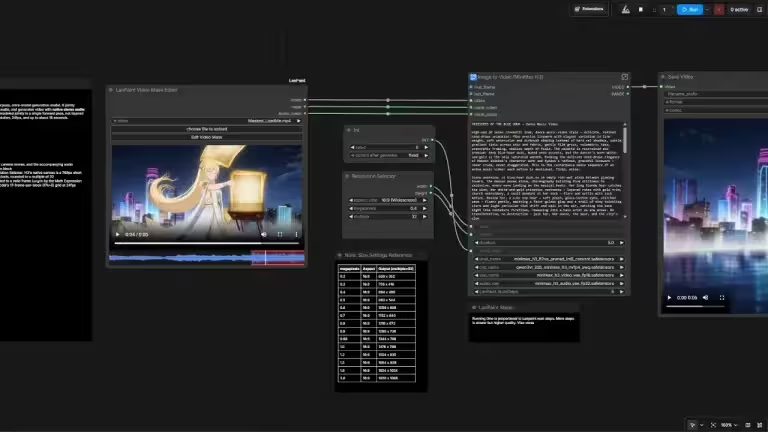
Your ComfyUI Workflow Hits the VRAM Ceiling. Does It Actually Fit?

You launch a heavy workflow in ComfyUI. The VRAM gauge climbs to 31 GB out of 32, and stays there. Most of us read that as “it barely fits” or “it’s spilling over”. After a week of measurements on an RTX 5090, I’m no longer sure that number answers either question.
Every test hit the same ceiling
It started with a series of upscaling tests on MiniMax H3 videos. Light methods, heavy methods: every single one pushed the VRAM peak to the same place, around 31 GB on a 32 GB card. On paper, they all looked equally demanding. The peak simply couldn’t tell them apart.
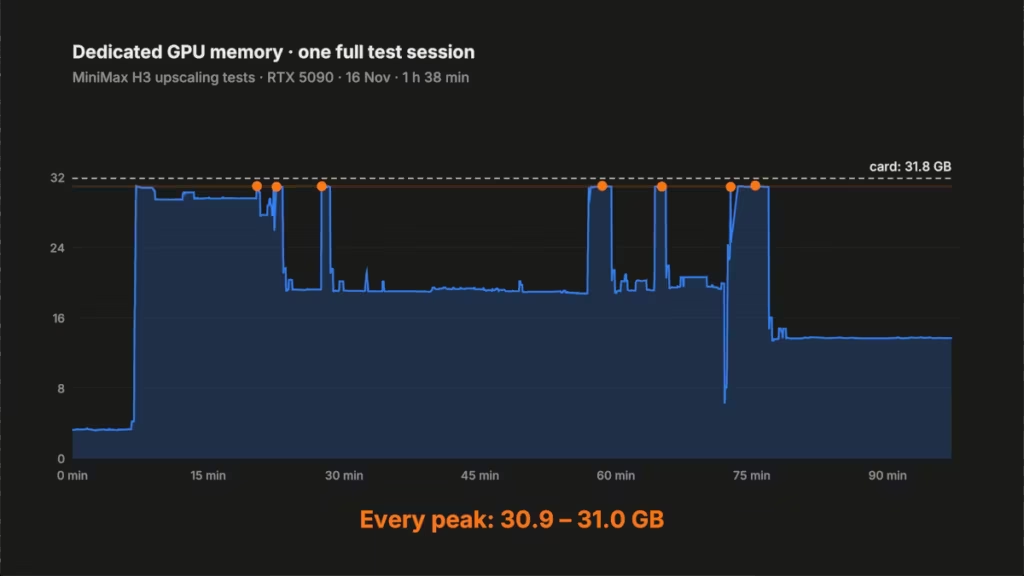
The clue was one line lower
Task Manager shows another counter right under dedicated GPU memory: shared GPU memory. During those same tests, it moved a lot. About 5 to 6 GB for most upscaling methods, around 15 GB for the heaviest one, and roughly 1 GB for NVIDIA’s own video upscaler. The peak stayed frozen; this number didn’t.
That raised a simple question: if the most visible number can’t separate a light workflow from a heavy one, what should you actually look at before deciding a workflow “fits” your card?
Four places your model can live
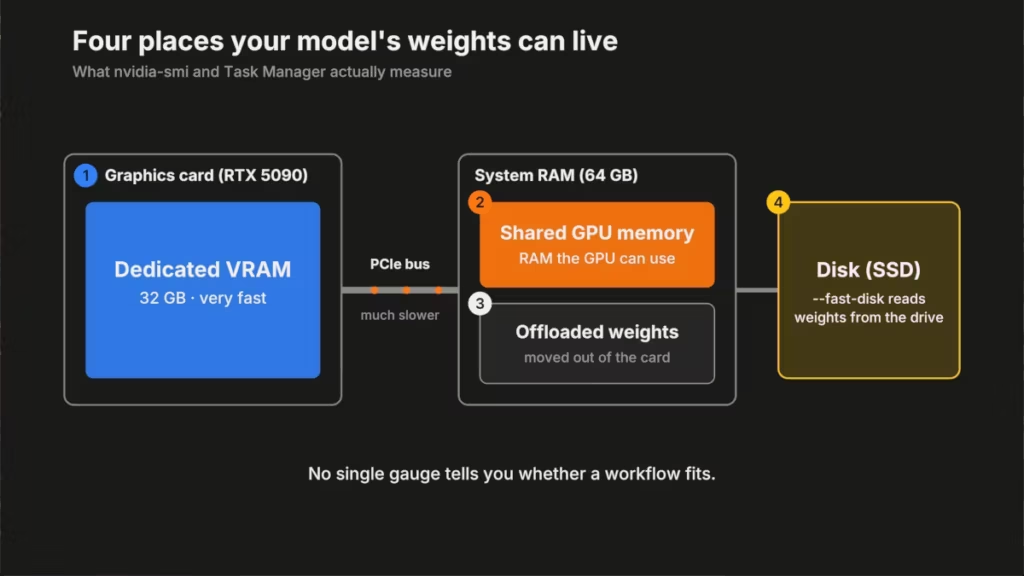
To answer it, you need a quick map of where model weights can sit while ComfyUI works:
- Dedicated VRAM, the memory on the graphics card. Fast, and what most overlays show.
- Shared GPU memory, regular system RAM that Windows lets the GPU use, reached through the PCIe bus.
- System RAM, where weights can wait when they’re not on the card.
- The disk, which ComfyUI can also read weights from directly with the
--fast-diskoption.
This matters more than it used to. Since March 2026, ComfyUI enables a memory system called Dynamic VRAM by default, which changes how and when weights move between these places. A full VRAM gauge doesn’t mean what it meant a year ago.
How I measured it
The first measurements fell into a few classic traps, so the second session followed a stricter protocol:
- Setup: RTX 5090 (32 GB), 64 GB of RAM, Windows 11, ComfyUI Desktop 0.46.0 with Dynamic VRAM enabled.
- Three workflows: FLUX.3 Image Klein (one 2048×2048 image), MiniMax H3 text-to-video with audio (10 seconds, 1344×768) and an Open-H3-Regenerate-2K-IC upscale.
- One log per run: dedicated VRAM, shared GPU memory, system RAM and GPU power recorded every half second, on the same timestamp.
- Clean runs: a fresh restart of ComfyUI before each test and a warm-up run on another seed, so cached results and leftover models don’t skew the numbers.
- Smaller cards, simulated: the same MiniMax H3 workflow run again while keeping 8 GB, then 16 GB of VRAM free with –vram-headroom, to behave like a 24 GB and a 16 GB card. This limits memory only: the chip and the PCIe bus are still those of the RTX 5090.
What the video answers
The full results are in the video. It goes through four questions:
- When the peak sits at the ceiling, is the workflow really overflowing?
- What happens to render time when only 24 GB, then 16 GB of VRAM are available?
- Where does that shared GPU memory come from: the NVIDIA driver, or ComfyUI itself? One test turns the driver’s memory fallback off to find out.
- Which number should you actually watch to know if a workflow fits your card?
Some of the answers surprised me, starting with the render times.
Your turn
How much VRAM does your card have, and what’s the heaviest ComfyUI workflow you run on it? Share it in the comments, under the video or below this article.
Your comments enrich our articles, so don’t hesitate to share your thoughts! Sharing on social media helps us a lot. Thank you for your support!