Drama-3 T8 in ComfyUI: A Getting-Started Guide to Running Fish Audio Drama 3 Locally
Fish Audio Drama 3 is one of the most expressive open-weight text-to-speech models available today: natural-language acting directions inside the script, up to 16 speakers in one scene, voice cloning from a short clip. Running it locally, however, is not trivial. It is a 35B-parameter mixture-of-experts (MoE) model with about 3B active parameters per token, and its FP8 weights alone weigh close to 39 GB.
Several ComfyUI integrations exist. This guide focuses on Drama-3 T8 (T8mars/Comfyui-Drama-3), the most feature-rich one we have found: besides plain speech generation, it adds scene revision, single-word infill, versioned voice libraries, multi-take production projects and a delivery package with WAV, per-line clips and SRT subtitles.
The node is powerful but dense. Nineteen example workflows, a long loader node and Chinese-language defaults can make the first hour confusing. This guide is meant to shorten that hour.
How to read this guide. We installed and ran the node on our own machine (RTX 5090 32 GB, 64 GB RAM, Windows 11, ComfyUI Desktop). Every section states clearly whether something was tested on that machine or is not tested yet (taken from the documentation or deduced from the workflow files). If you need details on an untested point, ask in the comments and we will look into it.
1. Why Drama-3 T8 instead of another Drama 3 node?
The best-known community node, PedroMarinhoDev/ComfyUI-Drama3, is a solid option for voice cloning, multi-speaker dialogue and transcription, with its own editor. Drama-3 T8 goes further on post-production. According to its documentation, it provides:
- Native ComfyUI nodes covering speech generation, reference-voice encoding, multi-speaker scenes, long text, streaming, session save/load, director revisions, infill, SRT and transcription.
- Creative production nodes: a versioned voice library, a cast (role → voice), a script made of numbered lines, several takes per line, and a delivery ZIP.
- A separate local Studio (a voice-production web interface) that shares the same inference engine.
With their full-precision files, both nodes keep most of the model in system RAM, so the hardware requirements are similar. Both also offer a smaller 4-bit file that can run entirely in VRAM on a 32 GB card. The weights are not interchangeable: Drama-3 T8 uses its own converted files, which require the T8 loader.
2. Hardware: what Drama 3 really needs
Drama-3 T8 comes in two model files, and the choice changes everything on a 32 GB card:
- FP8 (drama3-t8-fp8.safetensors, 38.6 GB) does not fit in 32 GB of VRAM. The node keeps the MoE experts in system RAM and places the rest of the model, plus a configurable expert cache, in VRAM.
- W4A8 (drama3-t8-w4a8.safetensors) uses experts compressed to 4 bits. It is small enough to be placed entirely in VRAM on an RTX 5090.
Two loader settings control this: expert_placement (ram or vram) and expert_cache_gb (the size of the VRAM expert cache when experts stay in RAM).
Tested on our RTX 5090 (32 GB VRAM, 64 GB RAM), generating about 15 seconds of audio:
| Model | expert_placement | expert_cache_gb | System RAM | VRAM | GPU load | Time for ~15 s of audio |
|---|---|---|---|---|---|---|
| FP8 | ram | 12 | ~30 GB | 23.2 GB | ~30% | ~170 s |
| FP8 | ram | 16 | ~30 GB | 27.3 GB | ~30% | ~150 s |
| W4A8 | ram | 16 | not measured yet | not measured yet | not measured yet | ~150 s |
| W4A8 | vram | — | ~16.5 GB | 29.3 GB | not measured yet | ~24 s |
What this means in practice:
- W4A8 fully in VRAM is about 6× faster than any configuration that keeps experts in RAM: roughly 1.6× real time instead of 10–11×. It also uses about half as much system RAM.
- With experts in RAM, the GPU sits at about 30%: it spends most of its time waiting for experts coming from system RAM over PCIe. A larger expert cache helps a little (16 GB was faster than 12 GB for FP8), but it does not change the picture. We did not try 20 GB: VRAM use grows by about 1 GB per GB of cache, so 20 GB would leave almost nothing for Windows’ display on a desktop card.
- Placing the W4A8 experts in RAM brings no benefit: it runs at the same speed as FP8.
- Not evaluated yet: audio quality of W4A8 compared with FP8. On another Drama 3 node, the W4A8 file is documented as falling silent more often with real voice clips. We have not yet compared the two by ear with a cloned voice, so keep FP8 as the reference until you have checked W4A8 on your own voice.
- 64 GB of RAM is comfortable for FP8; W4A8 in VRAM is far less demanding on system RAM.
Windows tip: when VRAM is nearly full, the NVIDIA driver can silently spill into “shared GPU memory” (system RAM), which makes generation much slower. In the NVIDIA Control Panel, under Manage 3D settings, set CUDA – Sysmem Fallback Policy to Prefer No Sysmem Fallback: you get a clear out-of-memory error instead of an invisible slowdown.
Not tested yet: whether the RAM is released after a generation or only when ComfyUI closes. If you need ComfyUI’s full memory for video generation right after, closing and reopening ComfyUI is the safe option.
3. Installation
3.1 Install the node
Requirements listed by the project: ComfyUI 0.40.0 or newer and Python 3.10 or newer.
Tested: we installed the node through ComfyUI Manager (search for ComfyUI-Drama3-T8). Manual installation is also documented: clone the repository into ComfyUI/custom_nodes, then run pip install -r requirements.txt and python install.py with ComfyUI’s own Python.
3.2 Known pitfall: ComfyUI crashes after installation
This is the most important practical warning in this guide.
Tested: during installation, ComfyUI Manager ran pip install huggingface-hub==0.36.2, a version pinned by the node’s dependencies. Pip therefore downgraded huggingface_hub from 1.19.0 to 0.36.2. Our ComfyUI environment uses Transformers 5.12.0, which requires huggingface-hub>=1.5.0. Pip prints a dependency-conflict warning, which is easy to miss in a long log.
At the next restart, Transformers looks for a function (is_offline_mode) that does not exist in version 0.36.2, and ComfyUI crashes during startup.
Fix: reinstall the newer huggingface_hub in ComfyUI’s virtual environment. With ComfyUI Desktop on Windows, the command looks like this (adjust the path to your installation):
powershell C:pathtoComfyUI_Desktop.venvScriptspython.exe -m pip install “huggingface-hub==1.19.0”
After this, ComfyUI started normally and the Drama-3 T8 node generated audio in our tests (see the measurements above).
Tip: before installing any node with pinned dependencies, run pip freeze > before.txt in ComfyUI’s environment. If something breaks, you can compare package versions in seconds.
3.3 Download the model files
The weights are hosted on Hugging Face at t8star/Drama-3-Comfy.
| File | Size | Role | Needed? |
|---|---|---|---|
| drama3-t8-fp8.safetensors | 38.6 GB | Main model, FP8 experts (reference quality) | Required (or W4A8) |
| drama3-t8-w4a8.safetensors | to be confirmed | Main model, 4-bit experts (fits fully in a 5090’s VRAM) | Alternative to FP8 |
| drama3-text-head.safetensors | 1.03 GB | Full text/control head (scenes, revisions, infill, streaming) | Required |
| drama3-line-head.safetensors | 8.46 kB | Compact head used for line/scene control | Recommended |
| drama3-codec.safetensors | 1.57 GB | Audio codec (encodes references, decodes output) | Required |
| qwen3-asr-06b.safetensors | 1.56 GB | Speech recognition (transcription) | Optional |
| qwen-aligner/ (folder) | — | Forced aligner (word timing) | Optional |
| FireRedVAD-ONNX/, Confucius4-R2T2-GGUF/ (folders) | — | R2T2 speech component | Optional, advanced |
Three points matter here:
- Download the main model and the heads from the same revision. The repository was updated to match the official 2026-10-29 Drama 3 revision, and the node’s documentation states that the main model and the heads must come from the same conversion. If you downloaded files at different times, check them against the SHA256 checksums shown on Hugging Face. In PowerShell: Get-FileHash -Algorithm SHA256 .drama3-t8-fp8.safetensors.
- Folders: the main model and the heads go in ComfyUI/models/diffusion_models/. For the other files, use the default locations listed in the project README. The loader also accepts custom paths (model_path, codec_path, text_head_path, line_head_path), which is handy if you keep models on another drive or in a shared models folder.
- The R2T2 component needs a separately distributed Windows CUDA runtime. You do not need it to get started.
4. Understanding the pipeline
Once you understand the five core nodes, the workflows become much easier to read. Every speech workflow follows the same chain:
- T8DramaLoader loads the model, the codec and the heads, and sets memory options.
- T8DramaReference encodes a reference voice from an audio clip plus its exact transcript.
- T8DramaSession groups the references and an optional global direction.
- T8DramaGenerate generates speech from your text (speech mode for a block, long mode for long text).
- T8DramaDecode turns the generated codes into a standard ComfyUI AUDIO output, ready for SaveAudio or any other audio node.
Because the output is standard AUDIO, you can chain Drama 3 into the rest of a ComfyUI pipeline, for example video generation driven by a voice track, as we did in Can a Voice Direct an AI Actor? Testing MiniMax H3 with Drama 3.
5. The 19 workflows: which ones to open
The workflows/ folder of the node contains 19 JSON files. You do not need most of them to get started.
| Workflow | Purpose | Priority |
|---|---|---|
| workflow_reference.json | One voice-over block with a cloned voice | Start here |
| workflow_long.json | Long text split into chunks | Everyday use |
| workflow_revision.json | Redo a line with a different direction | Everyday use |
| workflow_infill.json | Regenerate a single word or short segment | Everyday use |
| workflow_creative_voice_project.json | Create a production project (voice library, cast, lines, takes, delivery) | Production |
| workflow_creative_project_resume.json | Continue an existing project | Production |
| workflow_creative_bundle_resume.json | Resume from an exported project bundle | Production |
| workflow_scene.json | Multi-speaker scenes and dialogue | Occasional |
| workflow_srt.json | Subtitles | Occasional |
| workflow_save_session.json / workflow_load_session.json | Save and reload a session (for example an encoded voice) | Occasional |
| workflow_editor.json | Editing | Occasional |
| workflow_basic.json | Speech without voice cloning | Testing |
| workflow_asr.json, workflow_align.json, workflow_codec.json | Unit tests for transcription, alignment and the codec | Testing |
| workflow_stream.json, workflow_live.json | Streaming and live preview | Testing |
| workflow_r2t2.json | R2T2 speech component | Advanced |
Status: we ran generation with the default loader settings and measured memory and speed. Revision, infill, scenes, SRT, sessions and the Creative project workflows are not tested yet. Their descriptions above come from the documentation and from reading the workflow files.
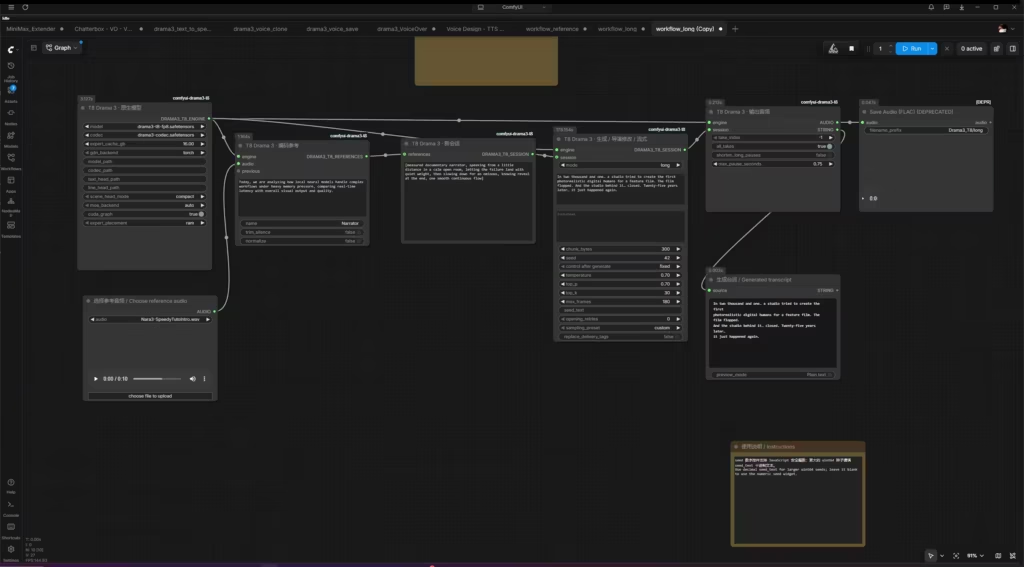
6. First test: workflow_reference.json
This is the right workflow for checking that everything works and for hearing your cloned voice.
- In LoadAudio, load a clean reference clip of a few seconds.
- In T8DramaReference, replace the placeholder Chinese text in transcript with exactly what is said in the clip, word for word. Another Drama 3 node documents missing words in the transcript as the most common cause of silent takes. The name field is display-only. For multi-voice work, put speaker tags such as <|speaker:0|> in front of the transcript.
- In T8DramaGenerate, replace the example text with yours.
- Run the workflow.
Default settings worth reviewing
The example workflows ship with defaults clearly designed for short Chinese test sentences. Several are worth changing for English or French voice-over. None of the recommended values below has been tested on our machine yet. They come from documented behavior and simple arithmetic.
| Setting (node) | Default | Why it matters | Suggested starting point |
|---|---|---|---|
| max_frames (Generate) | 180 | Drama 3 produces about 21.5 audio frames per second, so 180 frames is about 8.4 seconds of audio. Longer blocks will probably be cut off. | 600–1000 for a voice-over block |
| top_k (Generate) | 30 | On another Drama 3 node, top_k = 30 is documented as a cause of takes falling silent at pauses, with top_k = 0 (no cap) recommended. | Try 0 (unless the node rejects it) |
| temperature / top_p (Generate) | 0.7 / 0.7 | Low values are documented to make takes slower, flatter and more likely to fall silent. | 1.0 / 0.9 |
| opening_retries (Generate) | 0 | Automatically retries a take that starts badly. | 1–2 |
| sampling_preset (Generate) | custom | Other presets may be available in the drop-down. | Check the list |
| expert_placement (Loader) | ram | Tested: with W4A8 on a 5090, vram cut generation time from ~150 s to ~24 s. FP8 cannot fit fully in 32 GB. | vram with W4A8, ram with FP8 |
| expert_cache_gb (Loader) | 12 | Tested with FP8: 16 GB was faster than 12 GB (~150 s vs ~170 s), at 27.3 GB of VRAM. | 16 with FP8 on a 32 GB card |
The T8DramaSaveSession node in this workflow saves your encoded voice. You can then reload it with workflow_load_session.json instead of re-encoding the reference every time.
7. Long text: workflow_long.json
This workflow uses mode = long, which splits the text into chunks while keeping the speech history from one chunk to the next. Two things stand out in the file:
- No reference voice is connected by default. To use your cloned voice, add the LoadAudio → T8DramaReference chain from the reference workflow and connect it to the T8DramaSession node.
- chunk_bytes is set to 48. In UTF-8, Chinese characters use 3 bytes, so 48 bytes means about 16 Chinese characters. In English, the same value means chunks of about 48 letters, which seems far too short. The reference workflow uses 300. Not tested yet: the ideal value for English. Start around 300 and adjust by ear.
The T8DramaDecode node in this workflow has all_takes enabled, so all the chunks are joined into a single audio file.
8. Production mode: the Creative project workflow
For a full video script, workflow_creative_voice_project.json is the most interesting part of the node. It turns a script into a structured project. The whole section below is not tested yet; it describes what the workflow file contains.
- Voice library: T8DramaVoiceLibrarySave stores your reference as a voice with its own ID and an immutable version. Set its language field to your language (the example uses zh).
- Cast: T8DramaVoiceCastBuild maps a role to a voice and a speaker number.
- Script: T8DramaCreativeProjectCreate takes a lines_json list. Each line has a line_id, a role and the original_text. You can use your own section numbers as IDs, for example {“line_id”: “1.1”, “role”: “Narrator”, “original_text”: “…”}. That makes it easy to match the audio clips to the sections of an edit.
- Takes: T8DramaCreativeBatch generates three takes per line by default, with per_line_context so each line is generated with awareness of the previous ones. Its sampling_json field uses the same defaults as above (temperature 0.7, top_p 0.7, top_k 30, max_frames 600); review them there too.
- Delivery: T8DramaCreativeDelivery builds a ZIP with the full audio, one file per line and an SRT file, at 48 kHz by default. T8DramaCreativeProjectExport builds a second ZIP with the complete project and its voice material.
Important: according to the workflow’s own instructions, running it creates a new voice and a new project each time. Run it once, then continue with workflow_creative_project_resume.json without changing the model, the settings or seed_text. Listening to, rating and selecting takes can then continue in the Studio.
Also check dictionary_json: its number and date normalization options are set with Chinese text in mind.
9. Troubleshooting checklist
| Symptom | First things to check |
|---|---|
| ComfyUI crashes at startup after installing the node | huggingface_hub was downgraded: see section 3.2 (tested) |
| Audio cut off after about 8 seconds | max_frames is too low (not tested yet) |
| Silent take, or only part of the text is spoken | Exact reference transcript, top_k, temperature / top_p, opening_retries (not tested yet) |
| Loader errors or strange output | Main model and heads from different revisions: compare SHA256 checksums |
| Very slow generation, GPU at ~30% | Experts are streamed from RAM: use W4A8 with expert_placement = vram if your GPU has 32 GB (tested), or raise expert_cache_gb with FP8 |
| Out of memory | Lower expert_cache_gb, close other GPU applications |
| ComfyUI still uses a lot of RAM after generation | Restart ComfyUI before memory-heavy video work |
10. License reminder
Drama 3 weights are distributed under the Fish Audio Community License v1.0, and the T8 conversion keeps those terms. In short: research and non-commercial use are free, and commercial use is allowed for organizations with under USD 500k in annual revenue. Hosted TTS or voice-cloning services need a separate license, cloning a real person’s voice requires their consent, watermarks must not be removed, and outputs may not be used to train other speech models. The node’s code itself is GPL-3.0, and bundled components (Qwen ASR, aligner, FireRedVAD, Confucius) keep their own licenses. Read the full license texts before any commercial use.
11. Verdict
Drama-3 T8 is currently the most complete way to use Fish Audio Drama 3 inside ComfyUI. It covers the whole voice-over path, from a single cloned line to a structured, multi-take project delivered as WAV files and subtitles.
It also asks for some care. Installation can break your ComfyUI environment if you do not watch the huggingface_hub version. The FP8 model needs around 30 GB of system RAM and runs about 10× slower than real time on our RTX 5090. The example workflows also need a few settings adjusted before they suit English voice-over.
The W4A8 file placed entirely in VRAM changes the experience: about 24 seconds for 15 seconds of audio on an RTX 5090, with half the system RAM. Whether its audio quality matches FP8 with a cloned voice is the next thing we will check.
For creators who want directed, expressive voice-over generated locally, that trade-off is worth it. We will update this guide as we test W4A8 quality and the revision, infill and Creative project workflows.
Your turn: if you need more details on a point marked “not tested yet”, or if you have measured other expert_cache_gb values or generation speeds on your own GPU, share them in the comments.
FAQ
Can Drama 3 run entirely in VRAM on an RTX 5090? Yes, with the W4A8 file and expert_placement = vram: 29.3 GB of VRAM used in our test. The FP8 file (38.6 GB) is too large; its experts have to stay in system RAM.
How much RAM do I need? About 30 GB of RAM with FP8 (experts in RAM), and about 16.5 GB with W4A8 fully in VRAM. We recommend 64 GB of system RAM for FP8.
How fast is it? On an RTX 5090, for about 15 seconds of audio: roughly 150–170 seconds with FP8 (depending on the expert cache), and about 24 seconds with W4A8 fully in VRAM.
Is W4A8 as good as FP8? We have not compared them by ear yet. Test W4A8 on your own reference voice before using it in production.
Can I use PedroMarinhoDev’s Drama 3 weights with Drama-3 T8? No. Drama-3 T8 uses its own converted files, which require the T8 loader.
Why did ComfyUI stop launching after I installed the node? Most likely because the installation downgraded huggingface_hub to 0.36.2, which is incompatible with Transformers 5.x. Reinstalling a recent huggingface_hub in ComfyUI’s environment fixed it for us.
Sources
Your comments enrich our articles, so don’t hesitate to share your thoughts! Sharing on social media helps us a lot. Thank you for your support!